An inbox that keeps conversations together
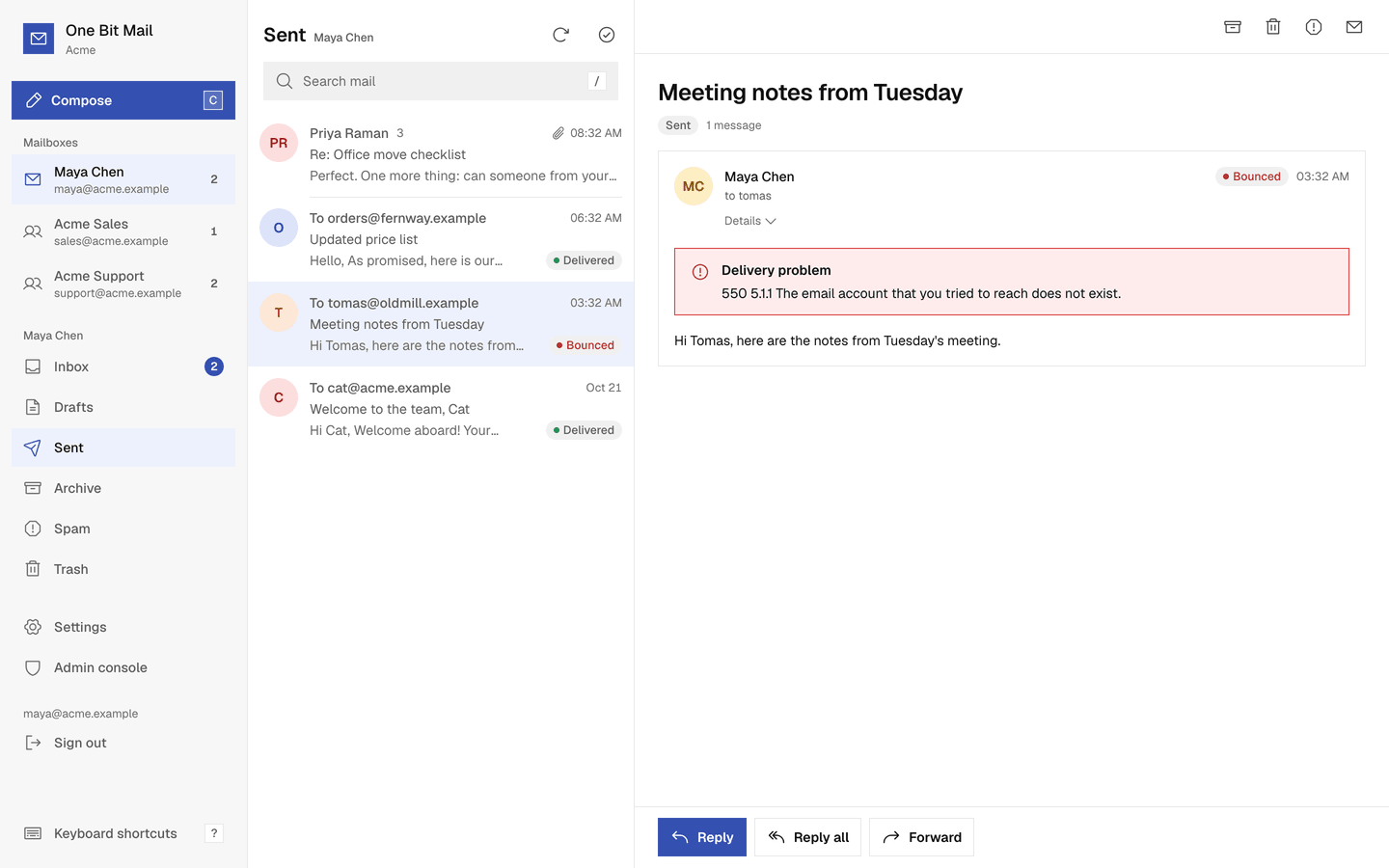
Replies stay together, new mail shows up without a reload, and everything you send shows whether it was delivered. It works the same in the browser and in the installed app.

What it does
Conversations
Replies are grouped into one conversation. Earlier messages and long quoted text fold away until you open them.
Live updates
New mail appears in the list as it arrives. On a phone, pull the list down to check for mail.
Search every folder
Search senders, recipients, subjects and message text in every folder of a mailbox, including Sent, Archive and Trash.
Keyboard shortcuts
Move with j and k, archive with e, search with /, and press ? for the full list.
Undo send and delivery status
A message waits about 5 seconds before it goes out, so you can undo it. Sent then shows whether it was delivered, bounced or failed.
Remote images blocked
Images the sender hosts on the web stay blocked until you choose Load images, so opening a message does not tell the sender you read it.
Images load through us
When you do load images, our servers fetch them for you, so the sender never sees your IP address, location or device.
How it works
- 1
Pick a mailbox
The sidebar lists your own mailbox and the shared mailboxes you can open, each with its own folders and unread count.
- 2
Read and act
Open a conversation, then reply, archive it, move it to Trash or mark it as spam. Undo is there for a few seconds after each move.
- 3
Write
Choose Compose, pick the From address, attach files and send. What you write is saved to Drafts as you go.
Questions, answered
More answers are in the help center, or write to support@onebitmail.com.
Do images in emails load automatically?
No. Images hosted by the sender stay blocked until you choose Load images for that message.
Can I take back a message I just sent?
Yes, for about 5 seconds. Choose Undo at the bottom of the screen to stop it and keep editing. Stay on the page during those seconds.
Which attachments can't be sent?
Programs and scripts, shortcuts and disk images, Office files with macros, and password protected ZIP files, to protect the people you write to. Send those through a file sharing service instead.
How do I know a message arrived?
Every message in Sent shows its status: Queued, Sent, Delivered, Bounced, Complaint or Failed. Hover over a bounce to see the reason.
Read more in the help center
- Find your way around your inboxMailboxes and folders, conversations, read and unread, archive, trash, spam and images.
- Write, reply and sendCompose a message, pick the From address, add attachments, undo a send and keep drafts.
- Delivery status and held messagesWhat Queued, Sent, Delivered, Bounced, Complaint and Failed mean, and why a message can wait for review.
- Search your mailFind a message by sender, subject or the words in it.
- Keyboard shortcutsRead, move and write mail without the mouse.
Related features
- Installable appOne Bit Mail installs on iPhone, Android and desktop straight from the browser, with push notifications for new mail, an unread badge on the icon, and light and dark mode. No app store.
- Sending and spam protectionSending limits, a short review for unusual mail, automatic steps when too much mail bounces, a Spam folder for unwanted mail, and no delivery for mail that carries a virus.
Start free,
add your team when you are ready
Every request is reviewed by hand. Approved workspaces start on the free plan.
Request access