Read your DMARC reports
See who sends mail as your domain, whether it passes, and when to make your DMARC policy stricter.
Updated
Anyone can put your domain in the From line of an email. DMARC is how the receiving side tells real mail from your domain apart from mail that only pretends to come from it. One Bit Mail collects the reports about your domain and shows them on the domain's page. Only admins can see them.
What DMARC is, in plain words
When a message arrives that says it is from you@yourdomain, the receiving mail service runs two checks:
- SPF: did it come from a server your domain allows to send?
- DKIM: does it carry a valid signature from your domain?
A message passes DMARC when at least one of these checks passes for your domain (this is called being "aligned"). Your DMARC record then says what to do with mail that fails:
| Policy | What receivers do with mail that fails |
|---|---|
p=none | Deliver it anyway. You only get reports. |
p=quarantine | Put it in spam. |
p=reject | Refuse it. |
Large mailbox providers send a report every day to the address in your DMARC record. The report lists every server that sent mail as your domain that day, how many messages, and whether they passed. We set your DMARC record up so these reports come to us (see DNS records explained).
Find the reports
- Open Admin console → Domains and choose the domain.
- Scroll to DMARC reports.
The section covers the last 30 days. Reports arrive a day or two after mail is sent, so the newest day is often missing. If you see No reports yet, send some mail from the domain and check back in two days. Reports are kept for 180 days.
Read the section
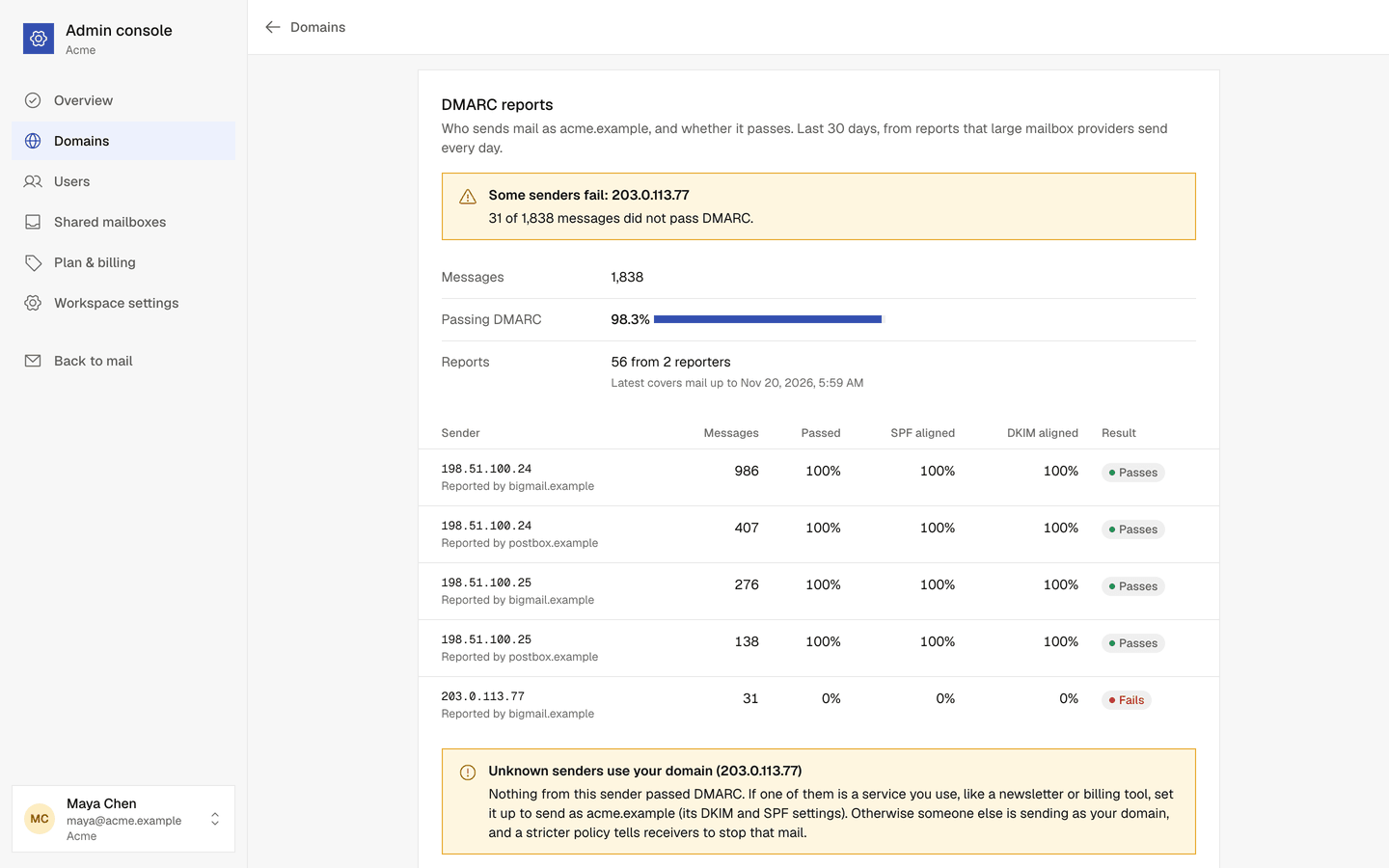
- The status line at the top says either All mail from your domain passes DMARC, or Some senders fail, with the addresses of the servers that failed.
- Messages: how many messages the reports counted.
- Passing DMARC: the share of those messages that passed.
- The table has one row per sending server (by its IP address) and per report sender. It shows
how many messages came from that server, how many passed, and how many passed SPF and DKIM for your
domain. Result sums it up:
- Passes: everything from this server passed. This is your own mail.
- Partly fails: some messages failed. Usually mail that someone forwarded, or a service that signs only part of its mail. A few failures are normal.
- Fails: nothing from this server passed.
When unknown senders use your domain
If servers appear under Unknown senders use your domain, nothing they sent passed DMARC. There are two possible reasons:
- A service you use is not set up. For example a newsletter tool, a billing system or a website form that sends as your domain. Look in that service's settings for "authenticate your domain" (DKIM and SPF) and follow its steps. The server should then move to Passes.
- Someone is pretending to be you. If you do not recognise the sender, this is spoofing. A stricter policy tells receivers to put that mail in spam or refuse it.
When to make your policy stricter
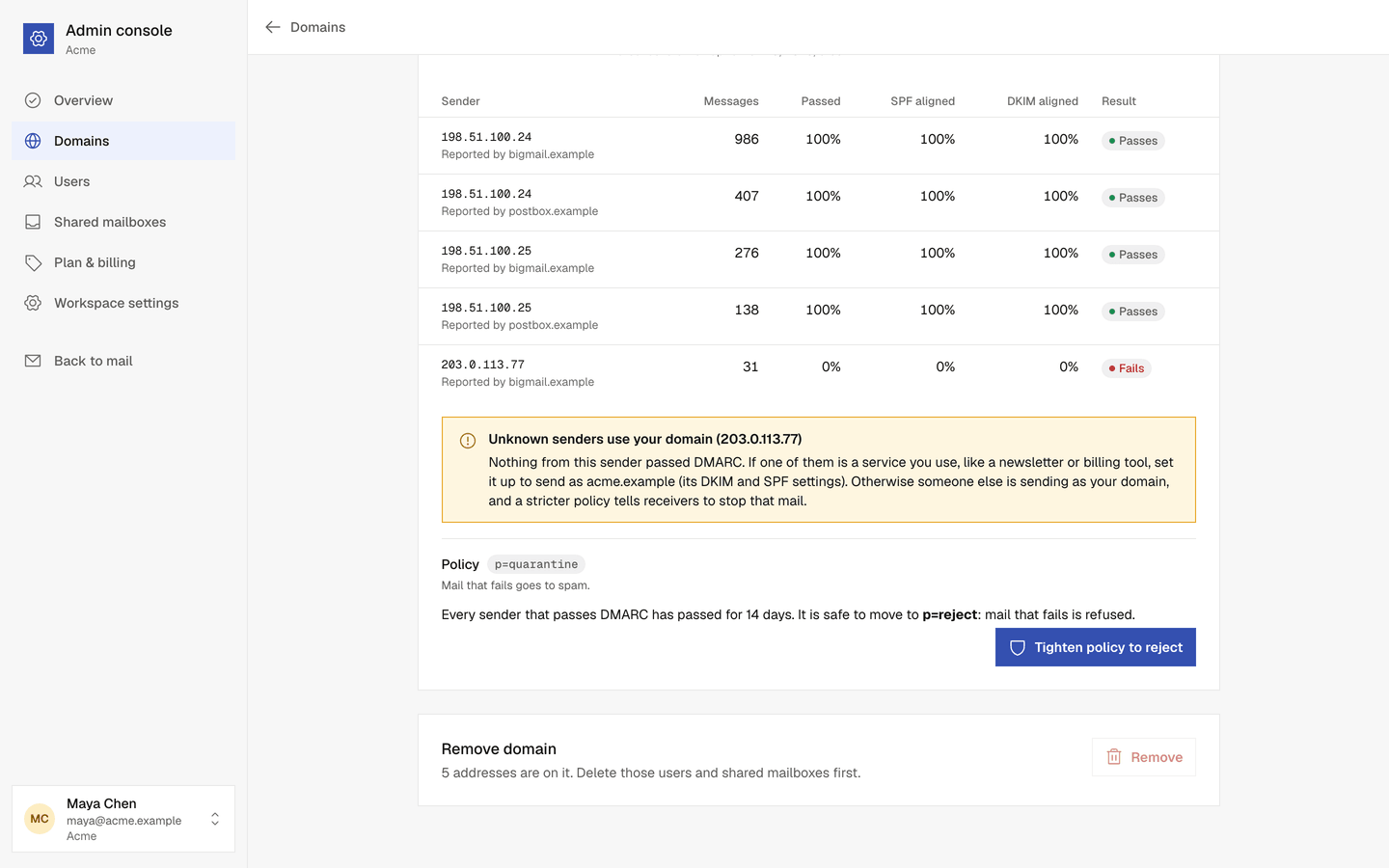
Under the table, Policy shows your current policy. We suggest the next step only when it is safe:
- the reports cover at least 14 days, and
- every server that sends your real mail passed at least 98% of the time in the last 14 days, and
- your policy has not changed in the last 14 days.
Servers that never pass (the unknown senders above) do not hold this back, because stopping them is the point. Check that list first, though: a service of yours that is not set up yet would also have its mail sent to spam.
When it is safe, choose Tighten policy. The steps go from p=none to p=quarantine, then, after
another 14 days, to p=reject.
- If we manage your domain's DNS, the DMARC record changes right away.
- If your DNS is managed somewhere else, we show the new record. Copy the value and change your
_dmarcTXT record to it where your DNS is managed.
Receivers pick up the new policy within a few hours.